AudioSwitch for macOS

Every audio device, one click from the menu bar.

macOS buries input switching several clicks deep in System Settings, and the built-in volume menu only covers output. AudioSwitch puts both in one panel — with volume, mute, a live microphone meter, and a hard kill switch for the mic.

macOS 14 or later · Apple silicon · signed and notarised · MIT licensed · about 1.5 MB

One panel. Both directions. No System Settings.


It knows what your devices are.

Not one glyph per connection type — a distinct icon per kind of device, the way the system Bluetooth menu does it.

AirPods look like AirPods

AirPods and AirPods Pro/Max, Beats, headphones, a hi-fi speaker, your Mac's own speakers, a display, a microphone, a virtual device — each gets its own glyph, resolved from the device name, the CoreAudio data source, and the transport. The menu bar icon follows the output: plug in headphones and the speaker becomes a pair of headphones, so you can see where the sound is going without opening anything.
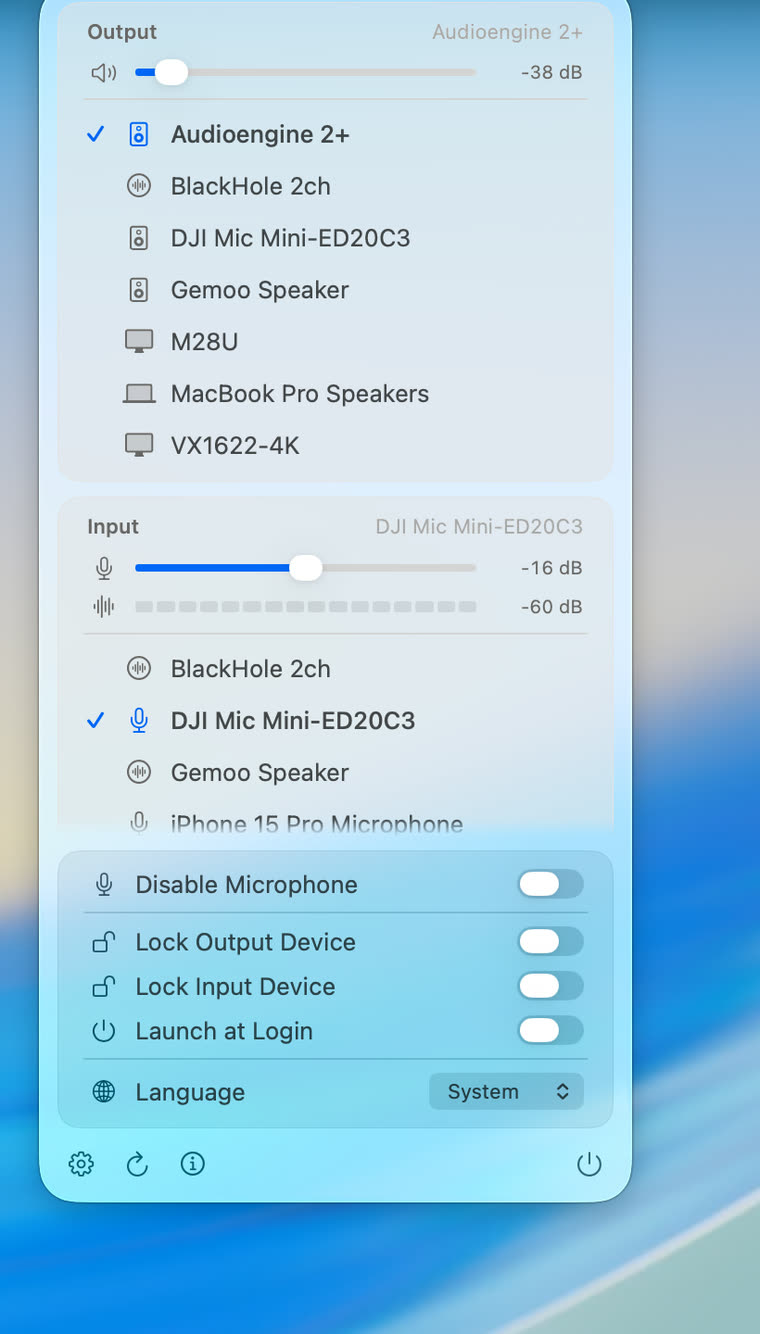
The AudioSwitch panel showing output and input devices, each with its own icon, volume sliders, a level meter, and the settings switches.

The same list System Settings shows

Devices are filtered on the CoreAudio property the system itself uses, so what you see here is exactly what Sound shows — the virtual devices macOS hides stay hidden.

Alerts follow the device

Switching the output moves the system alert output too, so notification sounds do not stay behind on the speakers you just left.

See whether your mic hears you

A live input level meter, right under the input slider. The microphone is only tapped while the panel is open — the app never holds it in the background, and the recording indicator goes out when you close the panel.

A hard off switch for the mic

Disable Microphone mutes the current input system-wide, re-mutes whichever device becomes default later, and survives a reboot. Devices without a mute switch get their gain zeroed instead.


Built for the way you actually use it.

The parts you only notice when they are missing.

  • Right-click to cycleRight-click the menu bar icon to jump to the next output device without opening the panel.
  • Lock a devicePin the output or input you chose. When another app grabs it — conferencing apps are the usual offender — it is switched straight back. Stored by device UID, so it survives unplugging and reboots.
  • Volume in dBSliders for both directions, with the level in decibels, converted through CoreAudio's own scalar-to-dB mapping rather than the property that some interfaces report wrong.
  • Stays in syncChange the volume with the volume keys, in System Settings, or from another app, and the panel and the icon follow immediately.
  • Keyboard⌘, Sound Settings · ⌘R Refresh · ⌘Q Quit
  • Three languagesEnglish, 简体中文, 繁體中文, or follow the system — switched at runtime, no restart.
  • Updates itselfSparkle checks daily in the background and verifies an EdDSA signature on the download before anything is installed.
  • Stays out of the wayNo Dock icon, no window, no login-item unless you ask for one, no analytics, no network calls beyond the update check.

Free, open source, and honest about its limits.

AirPlay targets are not listed. System Settings shows AirPlay speakers alongside local devices; they are not reachable through public APIs, because macOS only instantiates one after it has been selected. Use Sound Settings… in the panel to pick an AirPlay target — once it is active, it appears in AudioSwitch like any other device.